
Most American offices and homes rely on printers, yet few understand the crucial role printer drivers play in everyday tasks. If your computer cannot talk to your printer, even the best device becomes useless. Over 80 percent of printing problems are actually caused by software conflicts or outdated drivers, not the hardware itself. Recognizing how printer drivers function will help you troubleshoot, maximize efficiency, and avoid frustrating printing errors when it matters most.
| Point | Details |
|---|---|
| Printer Drivers Facilitate Communication | They serve as essential software translators between computers and printers, converting documents into printer-specific commands. |
| Selecting the Right Driver Type is Crucial | Choosing the appropriate printer driver based on document needs and hardware capabilities significantly affects print performance. |
| Regular Driver Updates Enhance Functionality | Keeping printer drivers updated is vital for compatibility, performance improvements, and security. |
| Troubleshooting is Key for Productivity | Effective diagnostics and optimization strategies for drivers can prevent disruptions and improve printing efficiency. |
A printer driver serves as an essential software translator between your computer and printer, enabling seamless communication and precise print job execution. These specialized software programs act like digital interpreters, converting the documents and images from your computer into instructions that your specific printer can understand and reproduce accurately.
At its core, a printer driver performs critical translation functions by transforming digital data into printer-specific commands. When you click print, the driver analyzes your document’s layout, formatting, colors, and resolution, then generates precise instructions that tell your printer exactly how to render those elements onto paper. This process involves complex calculations about paper size, orientation, print quality, and ink or toner placement.
Printer drivers are not universal - each printer model requires a unique driver that understands its specific hardware capabilities. Different printers from manufacturers like HP, Canon, or Brother have distinct mechanisms for processing print jobs, which means their drivers must be precisely configured to match their individual technical specifications. Understanding laser versus inkjet printer technology can help you appreciate why these specialized drivers are so important for optimal print performance.
Pro Tip - Driver Management: Regularly update your printer drivers through the manufacturer’s website to ensure compatibility with your operating system and access the latest performance improvements and bug fixes.
Printer drivers are not a one-size-fits-all solution, with multiple specialized types designed to meet different printing requirements and hardware configurations. The primary driver categories include Universal, Manufacturer-Specific, Postscript, and PCL (Printer Control Language) drivers, each offering unique capabilities and performance characteristics for various printing environments.
Two primary driver types stand out in technical complexity: PCL and PostScript drivers. PCL drivers, originally developed by Hewlett-Packard, excel in text-heavy documents and provide robust performance for business printing needs. PostScript drivers, created by Adobe, offer superior graphics handling and are preferred for high-quality image and design work, particularly in professional graphic design and publishing industries.
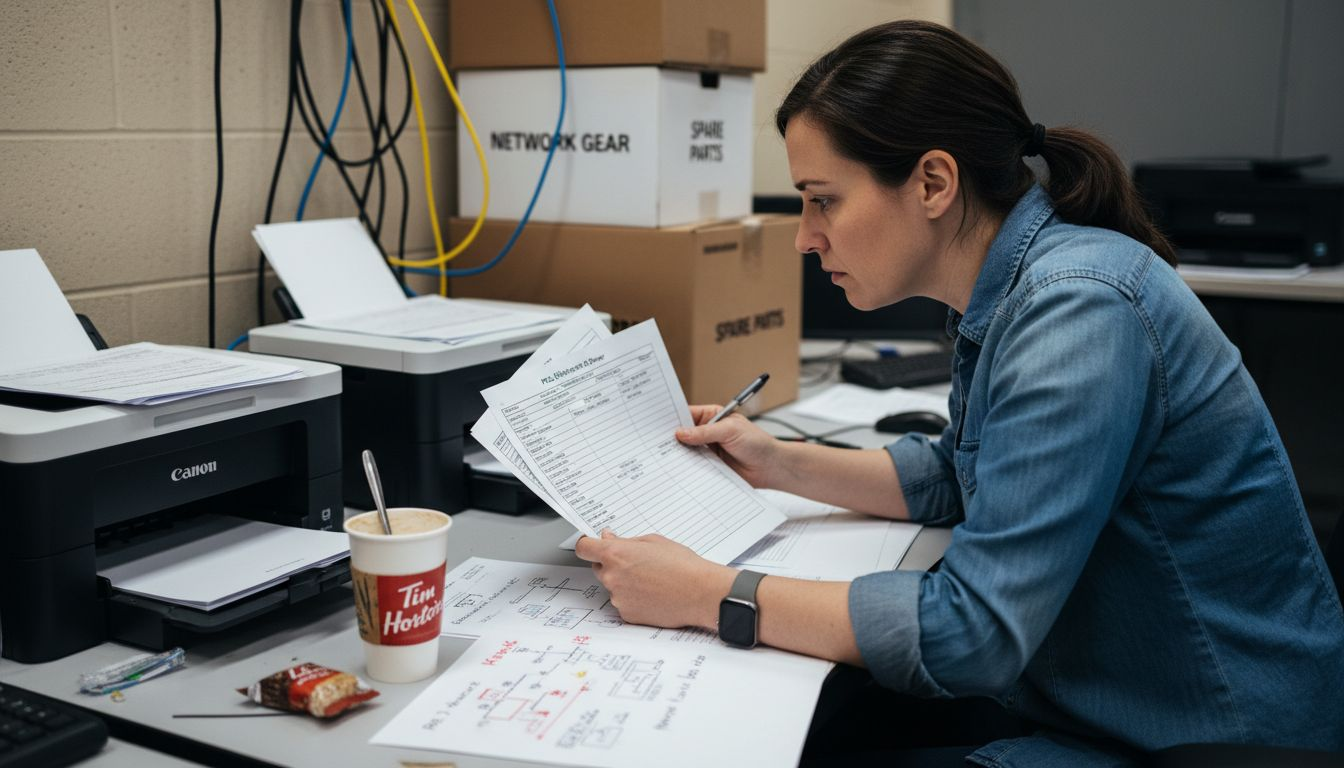
The selection of printer driver can significantly impact print quality and efficiency. Universal drivers provide basic compatibility across multiple printer models, while manufacturer-specific drivers offer deep integration and optimize performance for particular printer hardware. Cost-effective printer strategies often involve selecting the right driver type to maximize printing efficiency and minimize potential technical complications.
Pro Tip - Driver Selection: Always match your driver type to your specific printing requirements, considering factors like document complexity, graphics quality, and printer hardware capabilities to ensure optimal performance.
Here is a comparison of the main printer driver types and their typical use cases:
| Driver Type | Best For | Strengths | Typical Limitation |
|---|---|---|---|
| Manufacturer-Specific | Model-specific precision | Maximizes hardware features | Limited to one brand/model |
| Universal | Mixed-printer environments | Easy deployment across models | Limited advanced features |
| PCL | Business text documents | Fast and efficient text output | Weaker graphics reproduction |
| PostScript | Professional graphics | Superior image and font quality | Slower with large print jobs |
Device compatibility represents a critical challenge in modern printing environments, where printers must seamlessly communicate across diverse technological ecosystems. Printer drivers act as sophisticated translation mechanisms, enabling smooth communication between computers, mobile devices, network systems, and printing hardware regardless of manufacturer or technological specifications.
The Xerox Global Print Driver demonstrates how universal driver interfaces can simplify device interactions. Modern printer drivers now support complex scenarios including wireless printing, cloud-based document transmission, and cross-platform compatibility. This means a single driver can potentially manage print jobs from Windows laptops, MacBooks, Android tablets, and iOS smartphones, transforming printing from a hardware-specific task to a flexible, device-agnostic process.
The evolution of printer drivers has dramatically expanded device connectivity options. Contemporary office printing solutions increasingly rely on adaptable printer technologies that can integrate smartphones, tablets, desktop computers, and network-connected devices into a unified printing ecosystem. This interconnectedness allows professionals to print documents directly from cloud storage, email attachments, and mobile applications with minimal technical configuration.
Pro Tip - Multi-Device Printing: Always download the most recent driver version directly from the manufacturer’s website to ensure maximum compatibility and support for the widest range of devices and operating systems.
Printer driver installations frequently encounter complex technical challenges that can frustrate even experienced users. Operating system differences, hardware variations, and network configurations create a minefield of potential compatibility problems that require strategic troubleshooting approaches.
Macintosh users often face unique driver installation challenges that differ significantly from Windows environments. Common issues include incomplete driver downloads, system permission conflicts, and unexpected network configuration errors. These problems can prevent proper printer recognition, limit printing functionality, or completely block driver installation, making it critical to understand the nuanced steps required for successful setup.
Printer driver installation requires careful attention to specific procedural steps to ensure smooth integration. Interrupting the installation process can lead to partial or corrupted driver configurations, potentially rendering the printer unusable. Users must maintain stable internet connections, ensure sufficient system permissions, and carefully follow manufacturer-provided installation instructions to minimize potential compatibility complications.
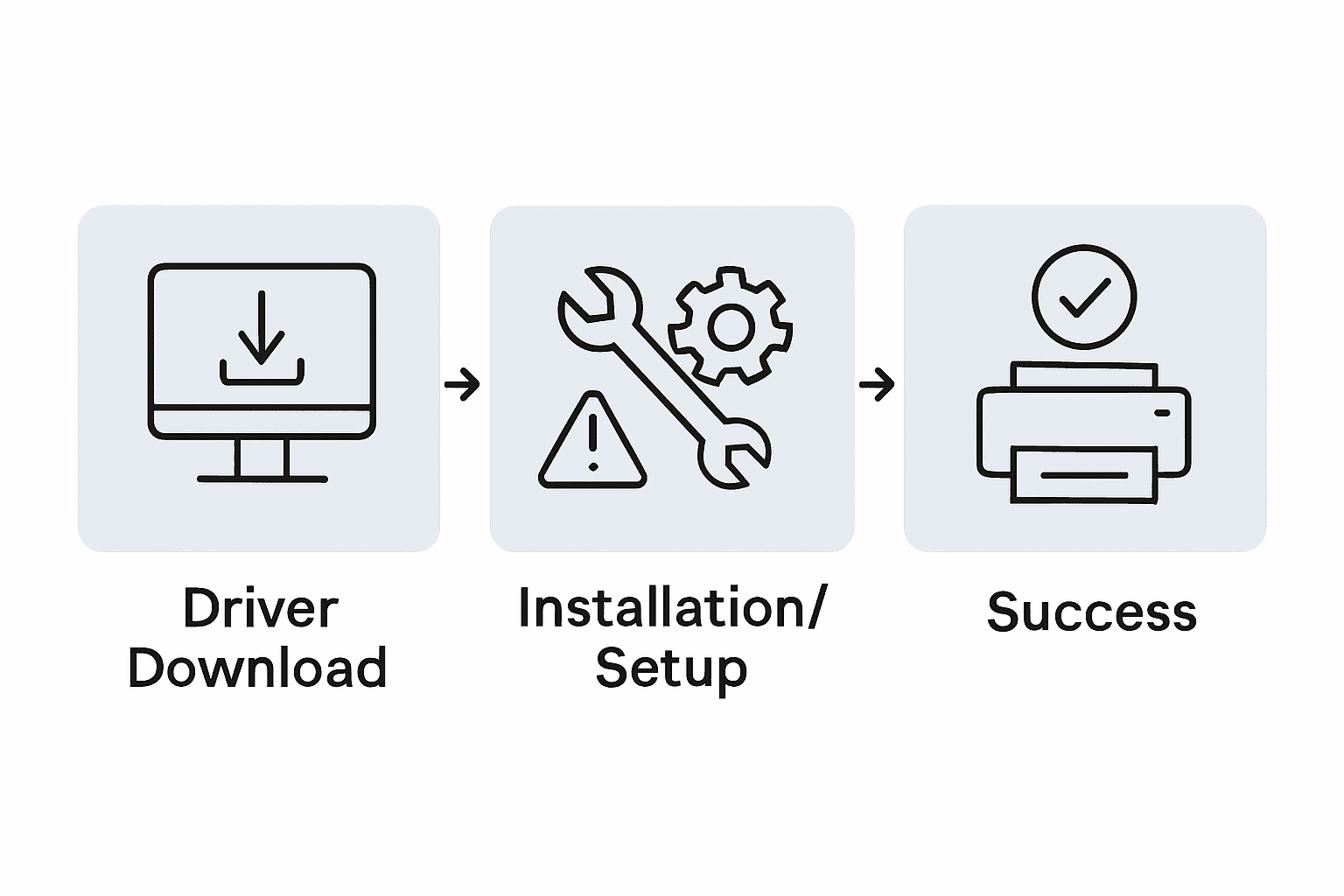
Pro Tip - Troubleshooting Preparation: Always create a system restore point before attempting printer driver installations, and download drivers directly from the manufacturer’s official website to ensure maximum compatibility and security.
Printer driver performance directly impacts workplace productivity, making effective troubleshooting and optimization critical for seamless printing operations. Understanding the nuanced strategies for diagnosing and resolving driver-related issues can save significant time and prevent frustrating technical interruptions.
Specialized diagnostic utilities like PrintingScout offer comprehensive solutions for identifying and resolving printer driver problems. These advanced tools can quickly detect configuration conflicts, outdated driver versions, and system compatibility issues that might otherwise require complex manual investigation. Typical diagnostic processes involve checking system logs, verifying driver compatibility, and performing systematic checks to isolate potential performance bottlenecks.
Advanced driver optimization techniques involve carefully configuring printer settings to match specific hardware and software environments. Cost-effective printer supply management plays a crucial role in maintaining optimal driver performance. Regular updates, precise configuration, and proactive maintenance can significantly reduce printing errors, improve system responsiveness, and extend the overall lifespan of printing equipment.
Pro Tip - Driver Health Check: Perform a monthly driver audit by checking manufacturer websites for updates, running diagnostic tools, and verifying system compatibility to prevent potential printing disruptions.
The following table summarizes common printer driver troubleshooting techniques and their key advantages:
| Technique | What It Addresses | Benefit to Users |
|---|---|---|
| Driver Update | Fixes bugs and compatibility issues | Prevents printing disruptions |
| Diagnostics Utility | Identifies setup conflicts | Rapid and accurate troubleshooting |
| System Restore Point | Reverts failed installations | Easy recovery from critical errors |
| Settings Optimization | Matches driver to environment | Improves print quality and speed |
Understanding printer drivers is crucial for getting the most out of your printing devices. From compatibility issues to selecting the correct driver type for your needs, these challenges can disrupt your workflow and cause costly delays. At GetToner.ca, we know that having reliable printer supplies and equipment delivered quickly can make all the difference in maintaining smooth printing operations at home or in your Canadian business.
Take control today by visiting GetToner.ca for affordable, high-quality ink and toner cartridges, printers, and multifunction devices tailored to your printer’s specifications. Benefit from our fast Canadian shipping, authorized reseller status for trusted brands like HP and Brother, and dedicated local support to help you solve printer driver hurdles efficiently. Don’t wait for printing problems to slow you down. Optimize your printing setup with GetToner.ca now and get back to what matters most.
A printer driver is a specialized software that acts as a translator between your computer and printer, enabling them to communicate effectively and ensuring print jobs are executed with precision.
Regularly updating your printer drivers helps ensure compatibility with your operating system, improves performance, and fixes any bugs or issues that may affect printing quality.
The main types of printer drivers include Manufacturer-Specific, Universal, PCL, and PostScript. Manufacturer-specific drivers optimize printing for specific hardware, while universal drivers offer broad compatibility. PCL drivers excel in text documents, while PostScript drivers are preferred for high-quality graphics and images.
To resolve installation issues, ensure you are downloading the driver from the manufacturer’s official website, check for system permission conflicts, maintain a stable internet connection, and thoroughly follow the provided installation instructions.